Data Abstract New Project Wizard
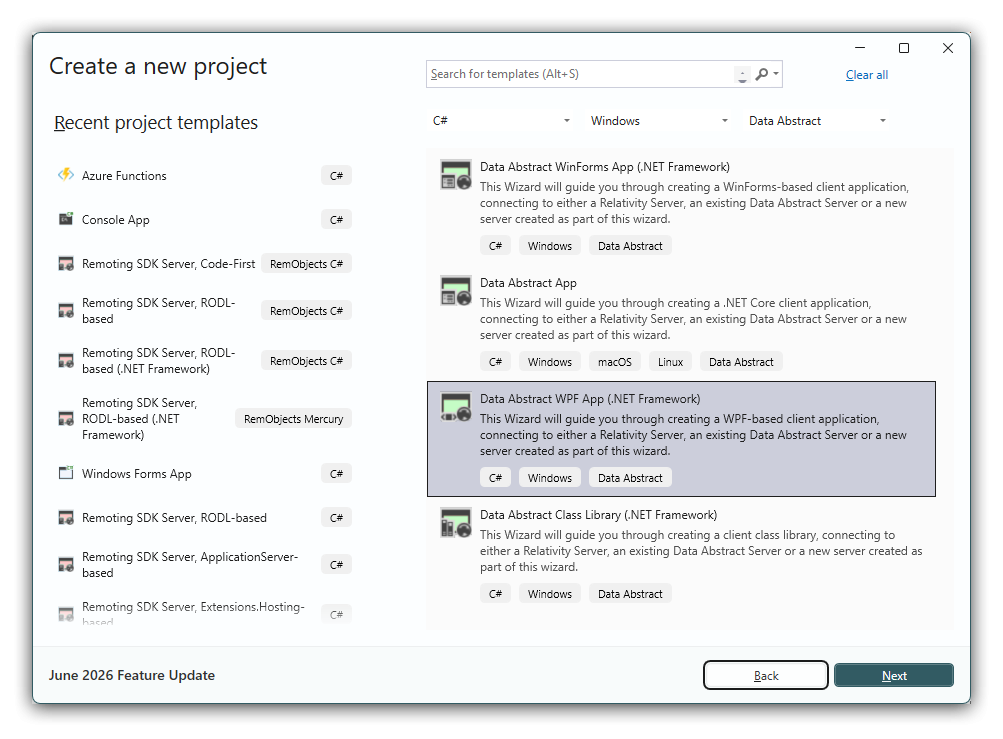
Data Abstract for .NET provides a sophisticated New Project template engine for starting new Data Abstract applications. The templates are focused around creating client applications for different platforms and technologies (WinForms, WPF, .NET Core and so on), and employ a wizard that will assist you with creating your client project and connecting it either to an existing or new server, or to a new server created at the same time.
The templates are provided for all three major .NET languages we support, C#, Oxygene and Visual Basic.NET. Client types currently supported include:
- WinForms Application
- WPF Application
- .NET Core Application
- Class Libraries (to add DA Client capabilities to an existing solution)
- Two-Tier (Client/Server) Application, for WinForms, WPF and class libraries
Your feedback as to which project types you would like to see supported will be appreciated.
Client and Server Choices
Once you have chosen the type of template project you wish to create and clicked "OK", a Project Template Wizard will launch and present you with a number of choices. Which choices appear depends on your Data Abstract edition and on the project type you selected.
The edition determines whether you can create servers at all: the Standard edition creates client applications only (connecting to Relativity Server or to an existing custom server), while the Server edition can additionally create a new custom server or a two-tier application. To learn more, see Which Edition of Data Abstract and Choosing between Relativity Server and a Custom Server.
The project type also affects the list. For example, the Two-Tier (Client/Server) option relies on a WinForms or WPF user interface, so it is offered for those project types but not for a .NET Core application.
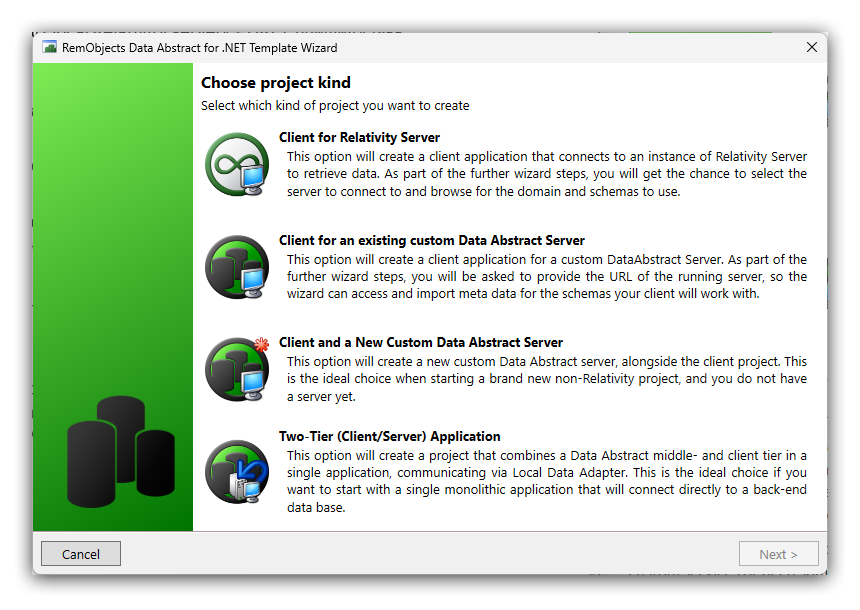
The two examples below show the first wizard page for a .NET Core app (three options) and for a .NET Framework WinForms/WPF app (four options), both on the Server edition:
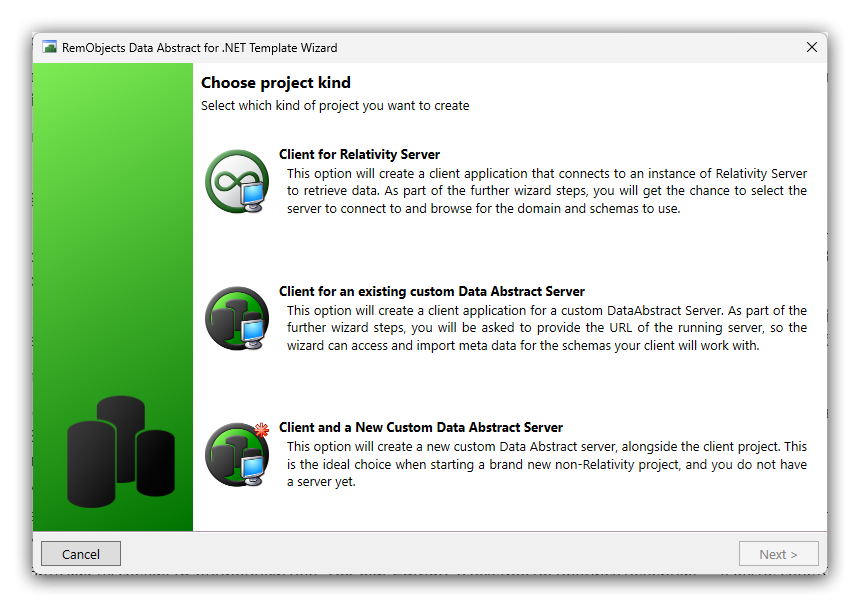
Client for Relativity Server
This option will create a client application that connects to an instance of Relativity Server to retrieve data. As part of the later wizard steps, you will get the chance to select the server to connect to and browse for the domain & schemas to use (or create new ones).
This is the recommended choice for new Data Abstract projects, unless you have a specific need for custom services or need some other functionality that is not available within Relativity.
Client for an existing custom Data Abstract Server
This option will create a client application for a custom Data Abstract Server you have already created.
This is the ideal choice for adding additional clients to an existing product. In the later steps of the wizard, you will be asked to provide the URL of the running server, so that the wizard can access and import the meta data for the schemas that your new client application will work with.
Client and a New Custom Data Abstract Server
This option will create a new custom Data Abstract server, alongside the client project.
This is the ideal choice when starting a brand new non-Relativity project, and you do not have a server yet. The new custom server will be able to be run as either a standalone WinForms application, a Mono commandline program (ideal for debugging and testing) or be registered as Windows Service or Unix Daemon (for deployment).
Two-Tier (Client/Server) Application
This option will create a project that combines a Data Abstract middle- and client tier in a single application, communicating via the Local Data Adapter.
This is the ideal choice if you want to start with a single monolithic application that will connect directly to a back-end database. While monolithic, the application does properly separate between middle-tier and client-tier within the application, so future migration of the project to a full multi-tier scenario will be possible.
The two-tier option is available for WinForms, WPF and class library projects.
Continuing the Wizard
The remaining wizard steps will differ based on whether you choose to connect to Relativity Server, an existing custom server or a new custom server. Some options shown in the Wizard might also differ depending on the project type you selected.
To read more about the type of project you are creating, select one of the options below: